Your Meshtastic Node is Dead (and You Don't Know It)
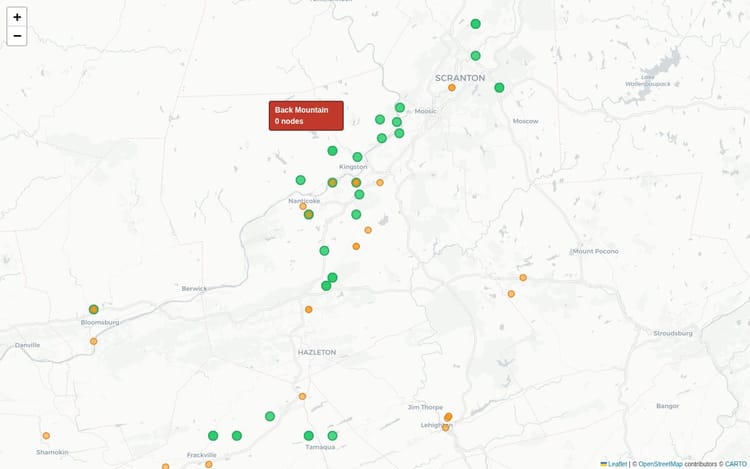
Pull up map.nepamesh.com right now and find your node.
Is it there? Is it green? Is it reporting telemetry?
If you're not sure, that's the problem.
As of this writing, NEPAMesh has 1,324 registered nodes. 363 of them were active in the last 24 hours. That means 961 nodes went silent today. Some of them failed. Some never had MQTT configured. Some are running fine on RF and just invisible to the map. Some are actually dead.
Most of their owners have no idea.
How to Know If Your Node is Contributing
Search your node name on map.nepamesh.com. If it shows up and the timestamp says within the last hour or two, you're fine. Stop reading.
If it doesn't show up, or the last heard time is days old, keep reading.
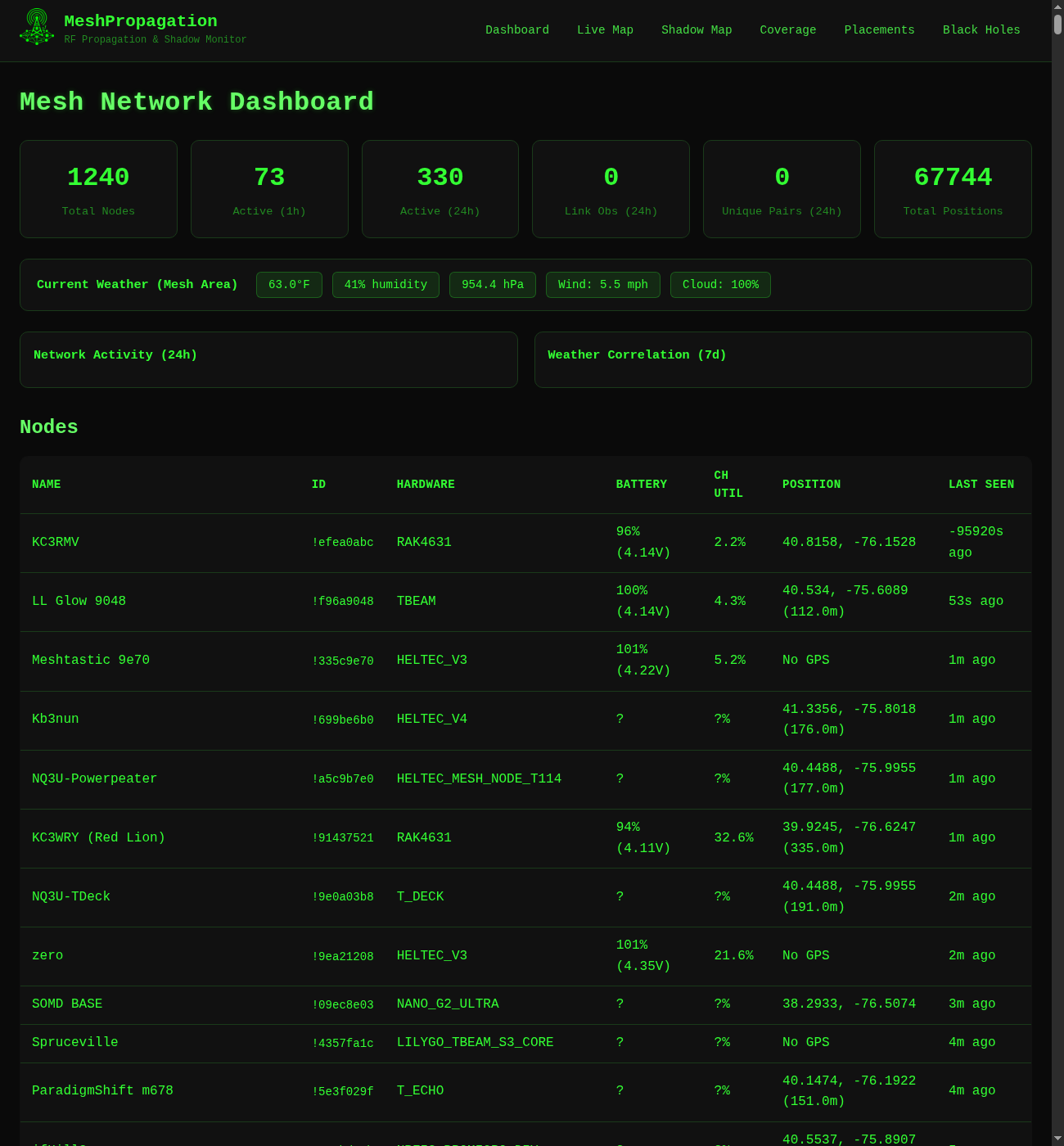
The map only shows nodes that have been heard via MQTT in the last several days. A node that's alive on the RF mesh but has no MQTT uplink is invisible here. That's not a hardware failure. That's a configuration gap, and it's the most common one.
Reason 1: "OK to MQTT" Is Turned Off
Open the Meshtastic app. Go to Radio Config > LoRa. Find the toggle labeled OK to MQTT. Is it on?
If not, turn it on right now. You don't need to set up your own MQTT server. You don't need WiFi on the node. Just that one toggle.
Here's why it matters: the map doesn't run on nodes uploading directly. It runs on a relay system. A small number of nodes, currently around 162, have full MQTT uplinks configured and are actively pushing data to mqtt.nepamesh.com. Those nodes act as bridges: when they hear another node's packets on the RF mesh, they forward them to the server, and that node shows up on the map.
Of the 363 nodes active on the map in the last 24 hours, roughly 197 are there because a relay node heard them, not because they have their own MQTT connection. More than half the active map is running on this relay mechanism.
But the relay only works if the packet is allowed to be forwarded. That's what OK to MQTT controls. When it's off, your node's packets are flagged as private, and every relay node that hears you ignores them for MQTT purposes. You exist on the RF mesh but nowhere else.
Turn it on. Every packet you transmit becomes eligible to be picked up by any relay node within range and forwarded to the map. If one of the 162 feeders can hear you, even through a hop or two, you'll appear on the map within minutes. No server setup required.
If You Have WiFi on Your Node
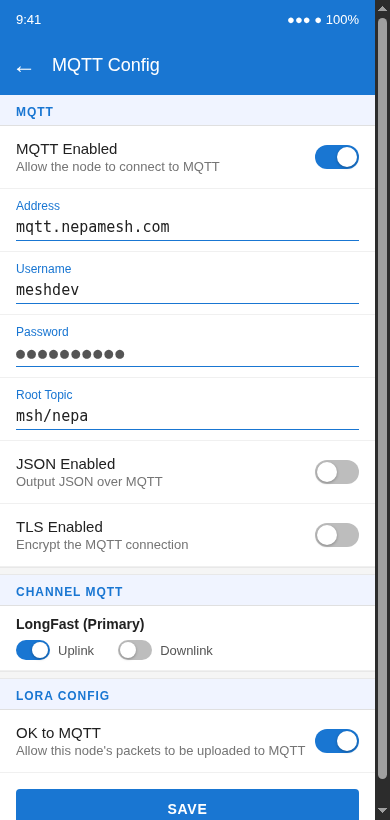
The step above gets you on the map passively. If your node has a WiFi connection, a fixed indoor node or home base station, you can also configure a direct uplink and become one of the 162 feeders yourself. This is better for the network: it means you're contributing visibility for other nodes, not just your own.
Setup takes five minutes. Server is mqtt.nepamesh.com, username meshdev, password large4cats, root topic msh/nepa (case-sensitive). Uplink on. Downlink off. The full walkthrough is at Getting Your Node on the Map.
If you set this up and your node still doesn't appear on the map within 15 minutes, the problem is something else.
Reason 2: Power
The second most common failure. Comes in a few flavors.
USB power adapter died. Cheap wall adapters fail. The node reboots fine when you plug in a USB cable to test it. The wall adapter that's been behind the TV for six months has been slowly failing and finally stopped putting out enough current. Swap it for a known-good adapter and see if the problem goes away.
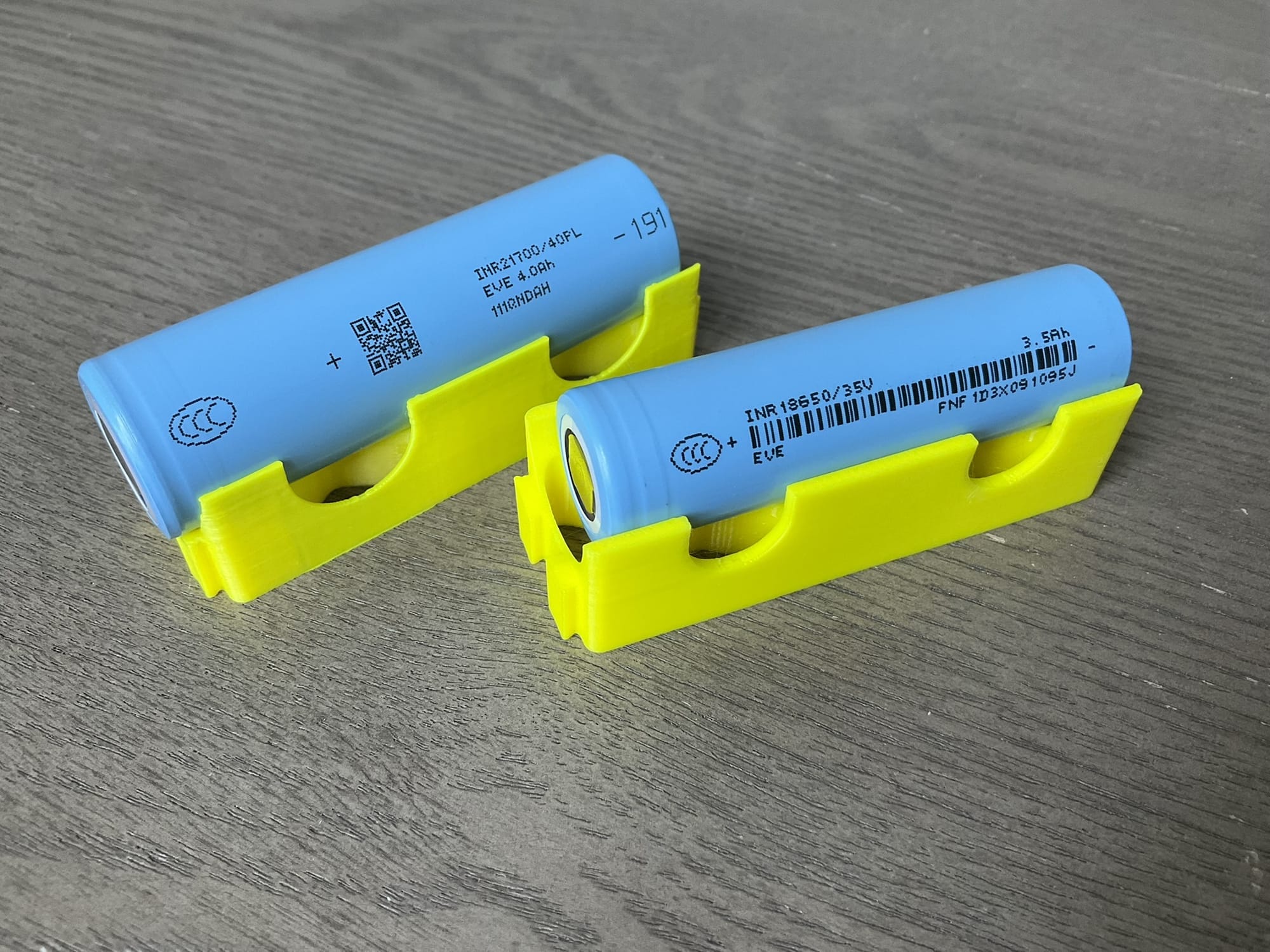
Battery drained and nothing is charging it. Nodes running on LiPo or 18650 cells without solar will eventually go flat. If the battery is at 3.3V or below, most firmware will cut out to protect the cell. The node won't be visible, won't respond to Bluetooth, and won't boot until it gets power.
Solar isn't keeping up. A panel that handles summer fine can fall behind in November through February. NEPA gets real winters. A two-watt panel pointed south at a 30-degree tilt that works great in July may not recover overnight charge in January. If you have a solar node that went quiet around October and came back in April, this is probably why.
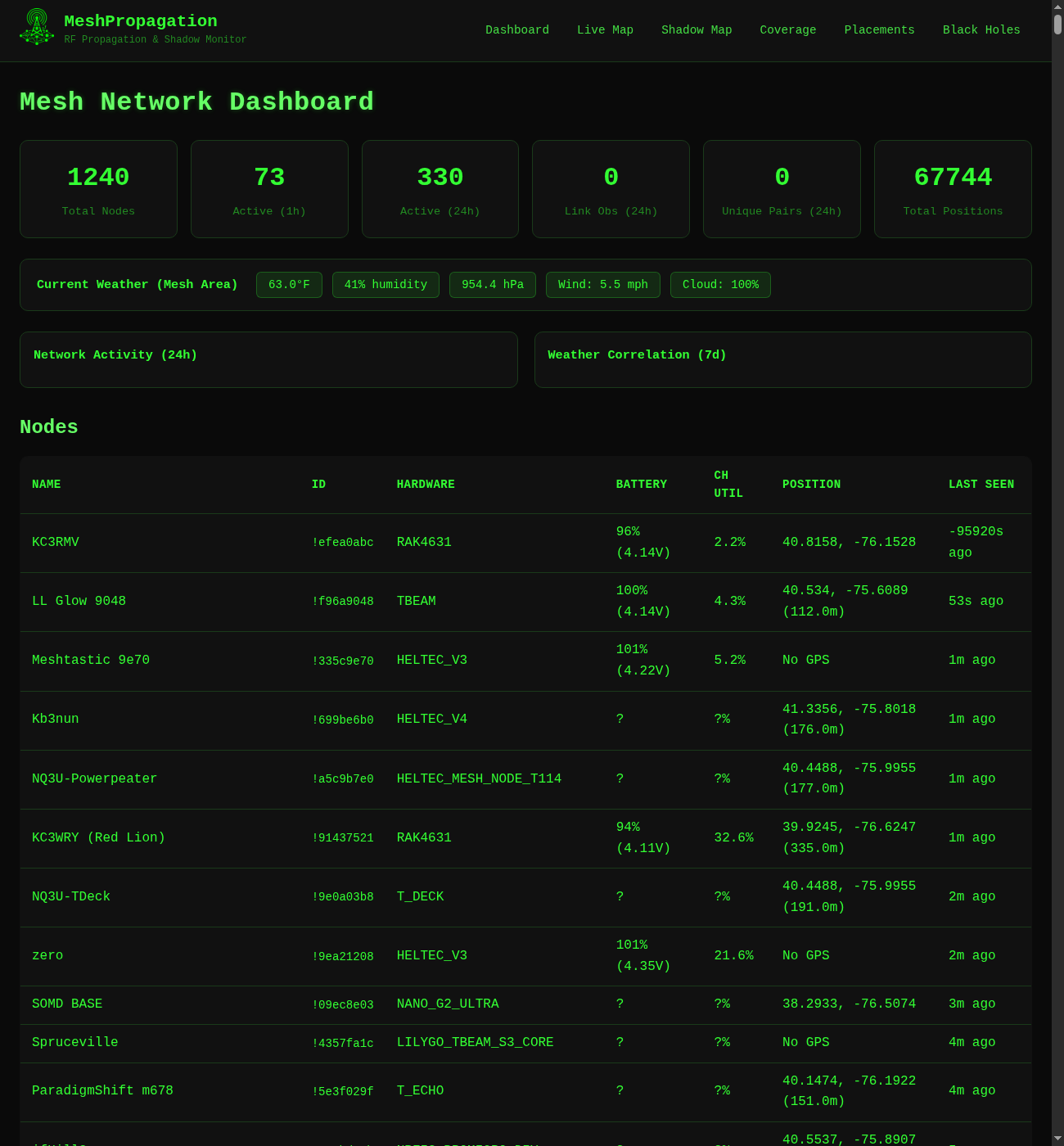
Check battery telemetry in the propagation dashboard if your node has MQTT configured. The node table shows battery percentage and voltage. Anything under 3.5V is getting into trouble. Anything under 3.3V is likely to be unresponsive.
Reason 3: The Antenna
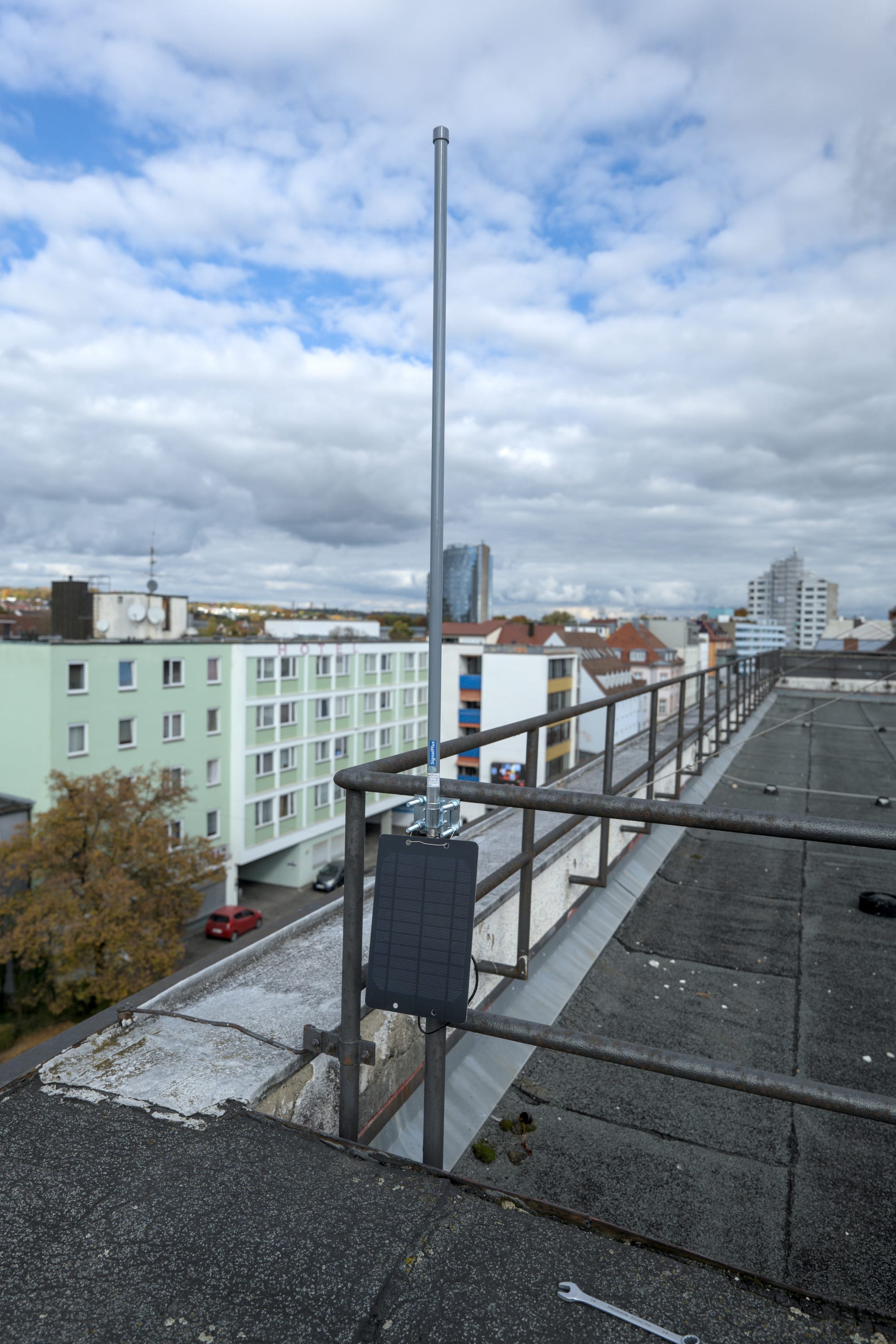
A disconnected antenna is a node that transmits and receives almost nothing. The LED blinks. The screen comes on if it has one. Everything looks normal. The RF range is measured in feet.
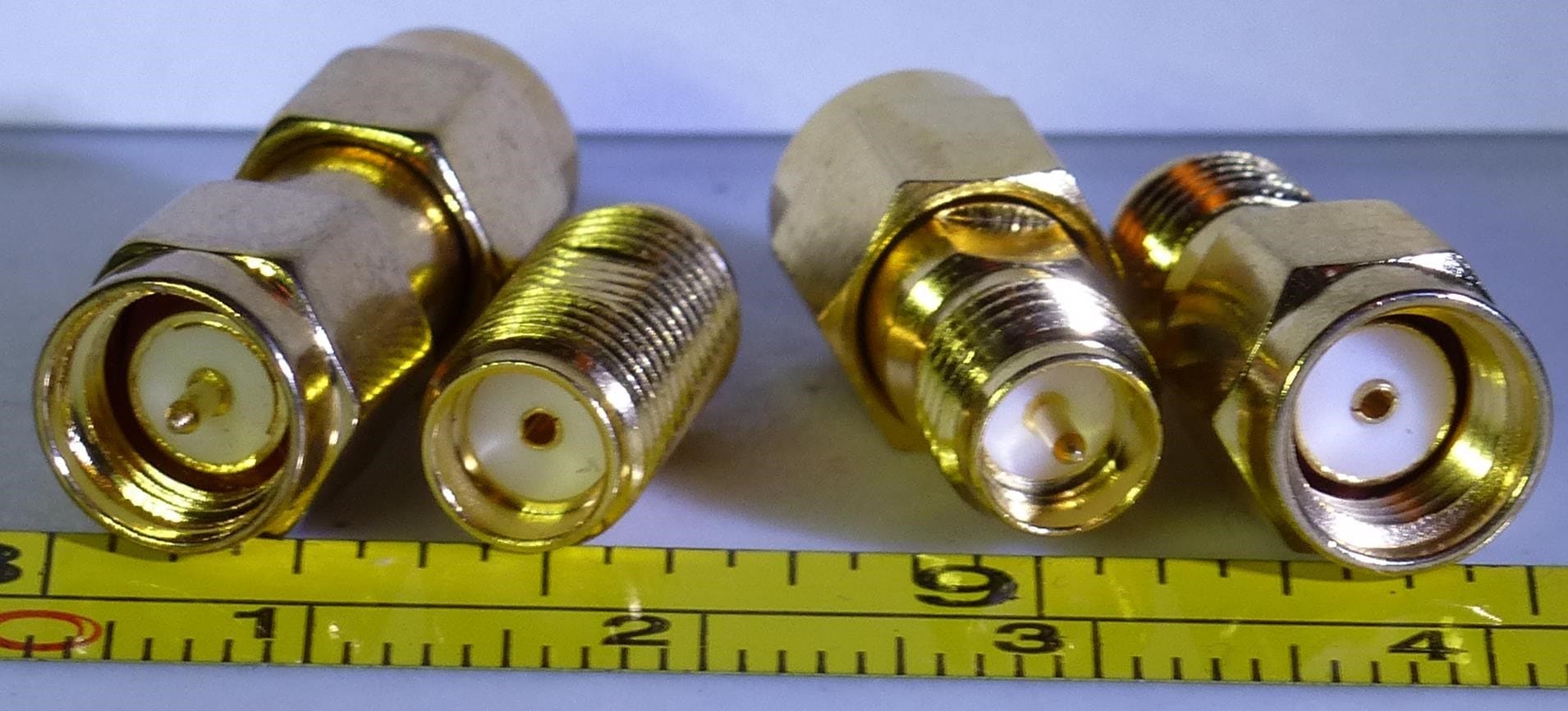
SMA connectors work themselves loose, especially on nodes that got moved or bumped. The connector on a Heltec V3 is small and the thread engagement is short. If the node is in an enclosure on a mast and something vibrated it, check the connector first before assuming the hardware is dead.
Transmitting without an antenna doesn't just give you bad range. On some hardware it can damage the RF front end. If your node was running without an antenna attached for any length of time, the radio itself may have taken damage. This is more common on higher-power boards.
Check the antenna first. It costs nothing and takes ten seconds.
Reason 4: Firmware or Reboot Loop
Some firmware versions have known stability issues. A node that's caught in a boot loop looks dead to the outside world because it never stays online long enough to connect.
Connect via Bluetooth or USB serial and watch what happens. If the node connects and immediately drops, or if the serial output shows repeated boot messages, you're in a reboot loop. The fix is usually reflashing to a stable firmware version.
Check meshtastic.org for the current stable release. Flash it via the web flasher or CLI. Don't assume the firmware version the node shipped with is still current.
Reason 5: It's Actually Dead
Hardware fails. Boards corrode, connectors oxidize, ESP32s get into states they can't recover from. If the node doesn't respond to USB serial, doesn't pair via Bluetooth, and doesn't show any signs of life, it may be gone.
Before writing it off, try a different USB cable. Try a different power source. Hold the reset button. On some boards, holding the boot/PRG button while applying power forces a recovery mode. If none of that works, the hardware is probably done.
The Heltec V3 is $26.97 at Rokland. The RAK WisBlock Meshtastic Starter Kit is $34.97. Sometimes the right call is a replacement.
The Fast Check
Not sure which category you're in? Here's the shortest path to an answer:
- Search your node on map.nepamesh.com. Active and recent? Done.
- If not on the map: connect via Bluetooth. Does the Meshtastic app see it? If yes, check MQTT settings.
- If Bluetooth doesn't connect: try USB serial. Does it show up in the app or Meshtastic CLI?
- If USB serial shows nothing: check power. Different cable, different adapter, check battery voltage.
- If power is fine and nothing responds: check the antenna connection, then consider a reflash.
- If reflash doesn't fix it: the hardware may be gone.
The map is the first and easiest check. If your node isn't on it, start there.
Getting Back on the Map
Once the hardware issue is resolved, MQTT setup is the last step. The full guide walks through it, but the short version: server mqtt.nepamesh.com, username meshdev, password large4cats, root topic msh/nepa, uplink on, downlink off.
After that, your node should appear on map.nepamesh.com within a few minutes. If it doesn't, the troubleshooting section covers the common MQTT issues.
961 nodes went silent today. Most of them can be fixed.
NEPAMesh is a community Meshtastic network covering Northeastern Pennsylvania's Wyoming Valley. Live map at map.nepamesh.com. Questions in the Discord.
Meshtastic is a registered trademark of Meshtastic LLC. No warranty is provided. Use at your own risk. This post is not endorsed by or affiliated with Meshtastic LLC.