Getting Your Node on the Map: MQTT Setup for NEPAMesh
Got a node and want to see it on the map? Same. Here's how I set mine up to report to map.nepamesh.com. The whole process took about five minutes once I knew where everything was.
This assumes you already have a flashed Meshtastic node and the app on your phone. If you're not there yet, check out the getting started post first. This picks up where that one left off.
The Deal
MQTT is the bridge between your node and the internet. When it's configured, your node sends its position, telemetry, and node info to our server at mqtt.nepamesh.com. The map server reads that data and puts your node on the map.
We run uplink only -- your node sends data to MQTT, but nothing from MQTT gets pushed back onto the RF mesh. This keeps the airwaves clean and prevents internet traffic from flooding the local mesh. You'll see this come up a couple times in the config.
Before You Start
You'll need:
- A working Meshtastic node with antenna attached
- Meshtastic app paired over Bluetooth
- A position source -- GPS, phone location, or a fixed position
- Internet on your phone (it proxies the MQTT connection)
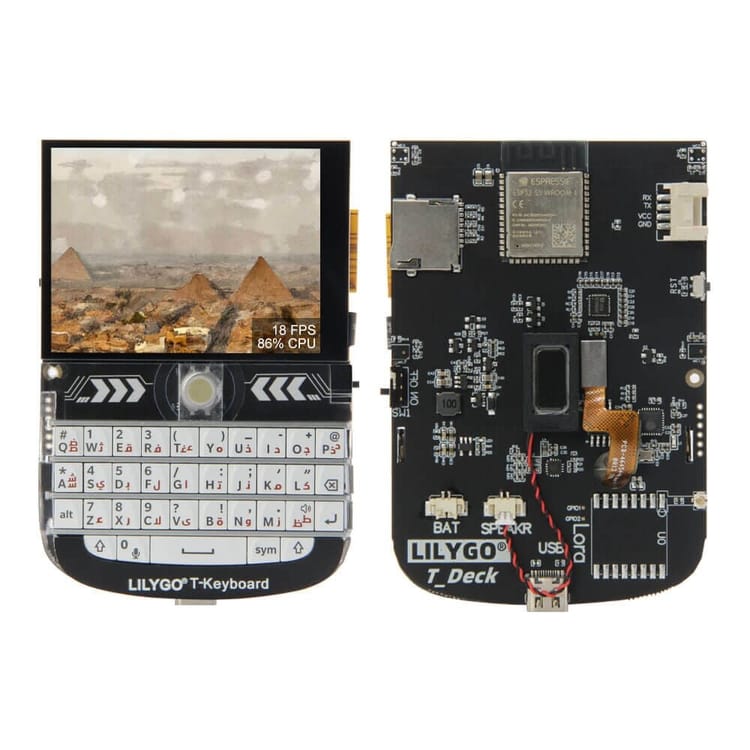
ESP32 boards with WiFi (Heltec V3, T-Deck, T-Beam) can connect directly. Everyone else goes through the phone. Remember if you turn on WiFi, it will disable Bluetooth.
MQTT Settings
First thing to set up is the MQTT connection itself. Open the Meshtastic app and connect to your node, then find the MQTT module settings. On Android that's Radio Configuration > MQTT. On iOS it's Settings > Module Configuration > MQTT.
Here's what to punch in:
| Enabled | ON |
| Server Address | mqtt.nepamesh.com |
| Username | meshdev |
| Password | large4cats |
| Encryption Enabled | ON (default) |
| TLS Enabled | OFF |
| Root Topic | msh/nepa |
| Proxy to Client Enabled | ON |
| Map Reporting Enabled | ON |
| Map Publish Interval | 3600 (seconds) |
| Approximate Location | 14 (default) |
The root topic is the one that gets people. Default is msh/US -- we use msh/nepa to keep our traffic separate. Case sensitive. No trailing slash. Miss this and your data ends up on the public server instead of ours.
Heads up: Proxy to Client needs to be ON if your node talks to the internet through your phone. If the node has its own WiFi, leave it OFF.
Channel Config
Next up is telling your primary channel to actually send data upstream. Open your channel settings -- on Android that's Channels > Primary Channel (LongFast) > Edit. On iOS, Settings > Channels > Primary Channel.
| Uplink Enabled | ON |
| Downlink Enabled | OFF |
| Position Enabled | ON |
| Precise Location | OFF |
The key here: Uplink ON, Downlink OFF. Uplink sends your mesh data to MQTT. Downlink would do the reverse, and we don't want that.
Heads up: Downlink stays OFF. If you turn it on, every MQTT packet gets rebroadcast over radio. That eats airtime and congests the mesh. Don't be that person.
Precise Location off adds about a mile of fuzz to your coordinates. Close enough for the map, far enough that it's not your front door.
LoRa Config
Almost done. There's one more toggle that's easy to miss, and it's in a different menu. Head to Radio Configuration > LoRa.
| OK to MQTT | ON |
This is the permission switch. Without it, your node ignores the MQTT config entirely. I spent 20 minutes troubleshooting before I found this one.
Position
Last piece: the map needs to know where you are. No position, no dot on the map. There are three ways to handle this depending on your hardware.
If your device has built-in GPS (T-Beam, T-Deck Plus, RAK with GPS module, T1000-E), you're already covered. Just make sure you've gotten a GPS fix -- first lock can take a minute or two outdoors.
No GPS on your board? No problem. You can share your phone's location through the Meshtastic app instead. I use this on my Heltec V3 and it works great.
If your node lives in one spot -- mounted on a roof, sitting on a shelf -- you can also set a fixed position manually. Punch in your approximate latitude, longitude, and altitude, and the node will use that for all its reports.
Check Your Work
Save all your settings and give it some time. The map publish interval is 3600 seconds (one hour), so your node will send its first report within that window. Pull up map.nepamesh.com and search for your node name or ID.
If you see yourself on the map, you're all set. If not after an hour, here are the usual culprits:
- OK to MQTT not enabled
- Root topic wrong (needs to be exactly msh/nepa)
- No GPS fix or fixed position
- Proxy to Client off when using phone connection
Quick Reference
Here's everything in one block if you just want to copy the settings and go.
MQTT Module
| Enabled | ON |
| Server | mqtt.nepamesh.com |
| Username | meshdev |
| Password | large4cats |
| Encryption | ON |
| TLS | OFF |
| Root Topic | msh/nepa |
| Proxy to Client | ON (phone) / OFF (WiFi) |
| Map Reporting | ON |
| Map Publish Interval | 3600 |
| Approximate Location | 14 |
Primary Channel (LongFast)
| Uplink | ON |
| Downlink | OFF |
| Position Enabled | ON |
| Precise Location | OFF |
LoRa
| OK to MQTT | ON |
When It Doesn't Work
Not on the map after an hour
- Make sure OK to MQTT is enabled in your LoRa settings
- Check that your root topic is exactly msh/nepa (case sensitive, no trailing slash)
- Verify your node has a GPS fix or a fixed position set
- If using phone proxy, confirm Proxy to Client is ON and your phone has data
Position is wrong
- GPS needs a clear view of the sky -- take it outside for a few minutes
- First fix after flashing can be off. Give it time to settle.
- Using fixed position? Double check your coordinates.
App says MQTT not connected
- Server address should be mqtt.nepamesh.com -- no https://, no port number
- Username: meshdev / Password: large4cats
- Make sure your phone has an active internet connection
- WiFi-connected nodes need correct WiFi credentials in the device settings
And that's really it. Five minutes of toggling settings and your node is contributing to the map. The more nodes reporting in, the better picture we get of where coverage is strong and where we've got gaps to fill.
If you run into anything weird, hop in the NEPAMesh Discord and ask. Somebody's probably hit the same issue before.
Links
- NEPAMesh Map: map.nepamesh.com
- NEPAMesh Discord: discord.gg/cSpfk6H2hz
- Getting Started: nepamesh.com
- Meshtastic MQTT Docs: meshtastic.org/docs/configuration/module/mqtt/
Meshtastic is a registered trademark of Meshtastic LLC. Meshtastic software components are released under various licenses, see GitHub for details. No warranty is provided - use at your own risk. The Meshtastic logo trademark is the trademark of Meshtastic LLC. This post is not endorsed by or affiliated with Meshtastic LLC.