LoRa Settings Explained: What Spreading Factor, Bandwidth, and Coding Rate Actually Do
Open the LoRa settings in the Meshtastic app and you'll find a screen full of options that look like they belong in an RF engineering textbook. Spreading Factor. Bandwidth. Coding Rate. Most people hit the back button and leave whatever the default is in place, which is actually the right call. But understanding what these settings do makes you a better builder, helps you diagnose problems, and explains why the whole mesh falls apart if one node decides to try something "better."
This is the longer version of "use LONG_FAST and leave it alone."
What LoRa Actually Is
LoRa (Long Range) is a radio modulation technique developed by Semtech. It's not a protocol or a network standard, it's specifically the method used to encode data onto radio waves. Meshtastic uses LoRa because it's designed for exactly the use case we care about: low power, low data rate, long range, resilient to noise and interference.
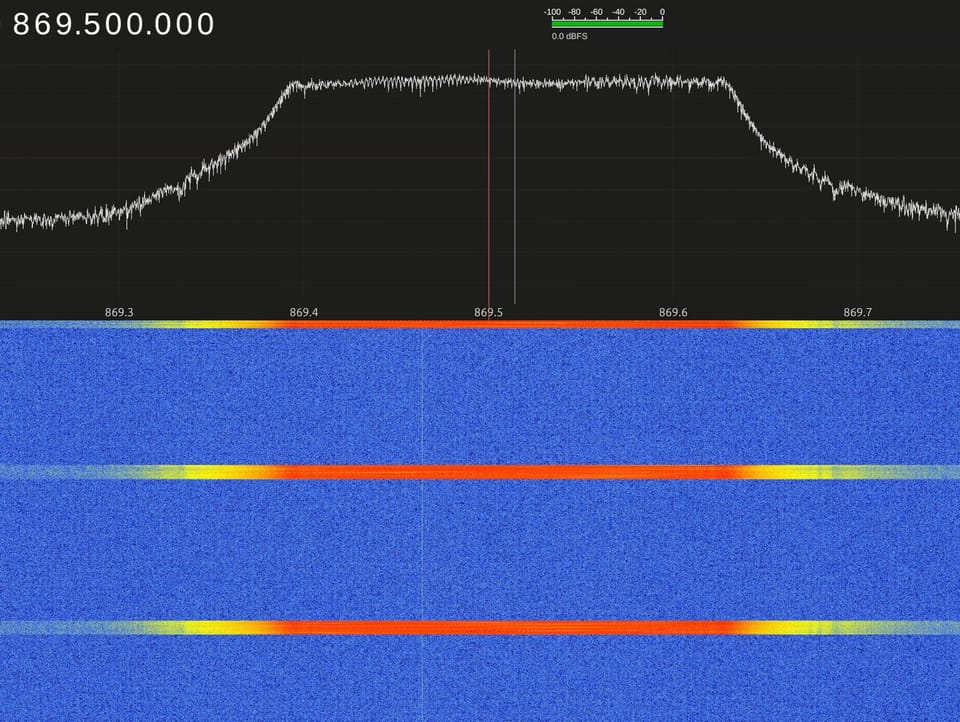
The way LoRa works is by spreading each bit of data across a wide range of frequencies over time, using a chirp signal that sweeps up (or down) in frequency. A receiver that knows what to look for can pull a valid signal out of noise levels that would bury a conventional radio. The tradeoff is that the spreading process takes time, sometimes a lot of it, which limits how much data you can push through.
The three settings that define LoRa behavior are Spreading Factor, Bandwidth, and Coding Rate. Together they determine range, throughput, and how long each packet sits on the air.
Spreading Factor
Spreading Factor (SF) is the single biggest lever you have. It runs from SF7 to SF12 in Meshtastic, and every step up the scale has two effects: the signal becomes more robust (harder for noise to corrupt), and each packet takes roughly twice as long to transmit.
The sensitivity improvement per SF step is about 2.5 dB. That doesn't sound dramatic until you do the arithmetic across the full range. SF7 to SF12 is five steps, which works out to roughly 12.5 dB of additional receive sensitivity. In practical terms, 12.5 dB is the difference between a signal that's borderline and one that comes through cleanly. It's the difference between a node hearing you from across the valley and not hearing you at all.
The cost is airtime. A packet that takes 100 milliseconds to transmit at SF7 takes about 3.2 seconds at SF12. That's not just a speed concern. Every millisecond your node is transmitting, it's blocking the channel for everyone else. On a mesh with 300+ nodes all sharing the same frequency, packet duration matters.
SF10, which is what the default LONG_FAST preset uses, sits in the middle of the range. It gets you solid sensitivity without making every packet a multi-second event on the air.
Bandwidth
Bandwidth is the width of the frequency slice your signal occupies. Meshtastic supports 500 kHz, 250 kHz, and 125 kHz. Wider bandwidth means faster data throughput but worse receive sensitivity. Narrower bandwidth improves sensitivity at the cost of speed.
The sensitivity relationship works out to roughly 3 dB per halving of bandwidth. Going from 500 kHz to 250 kHz gains you about 3 dB. Going from 250 kHz to 125 kHz gains another 3 dB. Combined with SF, this is how the presets stack up different range-versus-speed tradeoffs.
LONG_FAST uses 250 kHz bandwidth. LONG_SLOW drops to 125 kHz for better sensitivity. SHORT_FAST opens up to 500 kHz for higher throughput at the expense of range.
One practical note: narrower bandwidth also means your radio has to be more precisely tuned to the channel center. Very narrow bandwidths (125 kHz and below) are more sensitive to frequency error between transmitter and receiver, which matters for cheap hardware with less stable oscillators. The popular budget boards handle this fine, but it's worth knowing why going narrower than 125 kHz starts causing problems on commodity hardware.
Coding Rate
Coding Rate is the proportion of transmitted data that is error-correction overhead rather than actual payload. Meshtastic expresses this as a ratio: 4/5, 4/6, 4/7, or 4/8.
At 4/5, five bits are sent for every four bits of real data. That's 20% overhead. At 4/8, eight bits are sent for every four bits of real data, 50% overhead. The higher the overhead, the more the receiver can reconstruct a packet that arrived with errors. That translates to being able to decode weaker signals, which means more range.
The gain from coding rate is modest compared to SF or bandwidth changes, roughly 1 dB per step from 4/5 to 4/8. It's not nothing, but it's not the main event either. Higher coding rates do slow things down, since you're sending more bits to carry the same payload, but the effect is smaller than SF changes.
LONG_FAST uses 4/5, minimal overhead, decent throughput. LONG_SLOW steps up to 4/8 to squeeze out every bit of link margin at the expense of efficiency.
How They Combine: The Presets
Meshtastic ships with named presets that package these three settings together into coherent configurations. You pick a preset rather than setting SF, bandwidth, and coding rate individually, which prevents the obvious mistakes (like pairing a high SF with a wide bandwidth in a way that doesn't make sense).
The presets from fastest to slowest:
| Preset | SF | Bandwidth | Coding Rate | Typical Airtime* |
|---|---|---|---|---|
| SHORT_FAST | 7 | 500 kHz | 4/5 | ~30 ms |
| SHORT_SLOW | 8 | 250 kHz | 4/5 | ~100 ms |
| MEDIUM_FAST | 9 | 250 kHz | 4/5 | ~180 ms |
| MEDIUM_SLOW | 9 | 125 kHz | 4/5 | ~350 ms |
| LONG_FAST | 10 | 250 kHz | 4/5 | ~350 ms |
| LONG_MODERATE | 11 | 125 kHz | 4/8 | ~1.5 s |
| LONG_SLOW | 12 | 125 kHz | 4/8 | ~3 s |
| VERY_LONG_SLOW | 12 | 62.5 kHz | 4/8 | ~6 s |
* Airtime varies with packet size. These are approximate figures for a typical short Meshtastic payload.
LONG_FAST is the Meshtastic default for most regions, including the US. It's the preset NEPAMesh runs on.
Why LONG_FAST Is the Right Call for NEPAMesh
Looking at the table, LONG_SLOW might seem appealing. It's more sensitive by several dB. For a network trying to punch signals through the ridge-and-valley terrain of Northeastern Pennsylvania, squeezing out every bit of link margin sounds like a good idea.
The problem is what happens to the channel when you make every packet three seconds long instead of 350 milliseconds.
The NEPAMesh network regularly sees 300+ active nodes. Even with the conservative broadcast intervals we recommend in the node settings post, that's a lot of radios sharing one channel. Each position update, each NodeInfo beacon, each text message occupies the air for its full packet duration. At LONG_FAST, a 350ms packet is manageable. At LONG_SLOW, the same traffic load would push channel utilization to the point where packets are constantly colliding and the mesh stops functioning reliably.
The sensitivity advantage of LONG_SLOW, roughly 7.5 dB over LONG_FAST across all three parameters, also matters less in NEPA than you might think. The terrain is the binding constraint. A signal that can't get over Moosic Mountain doesn't get there because you switched to LONG_SLOW. A node at elevation on the right ridgeline hears everything on LONG_FAST. Better antenna, better placement, better node role, these solve the actual problem. Switching presets moves the last few dB of link budget at significant cost to network capacity.
LONG_FAST gives the mesh enough range to cover the terrain where nodes exist, leaves room for the network to breathe, and keeps message latency short enough that the system feels responsive. That's the right balance for a 300-node community mesh.
The Rule That Can't Be Broken
Every node on the same mesh must run the same preset. This isn't a recommendation, it's physics. A node on LONG_SLOW transmits and listens on a different channel configuration than a node on LONG_FAST. They cannot hear each other at all. If you change your preset, you're not on the NEPAMesh anymore. You're on your own private network of one.
This is the reason you don't experiment with presets on your primary node without understanding the consequences. Changing to LONG_SLOW because "more range sounds good" silently disconnects you from every other node in the area. Your app won't error out. The radio will still transmit. You just won't be heard by anyone and you won't hear them either. It's a confusing failure mode that looks like a hardware problem.
If you want to experiment, do it with a second node on a bench that you're not relying on for mesh connectivity.
When You'd Actually Change the Preset
There are real reasons to deviate from LONG_FAST. They're just narrow.
Point-to-point links on a dedicated channel. If you're running a secondary channel, say, a private group channel between two specific nodes, you can configure that channel to use a different preset independent of the primary mesh channel. A LONG_SLOW link between two nodes at fixed locations might make sense if those two nodes have a marginal path that LONG_FAST barely closes. The primary channel stays on LONG_FAST; the secondary channel handles the specific link differently.
A completely separate private network. If you're building a separate mesh for a specific event or use case that won't interact with the public NEPAMesh, you control the preset for that network. Indoor events, private property deployments, testing setups, these can run whatever makes sense for the environment.
SHORT_FAST for high-density indoor or short-range use. Some deployments, a conference, a building, a campsite, have nodes very close together and benefit from higher throughput. SHORT_FAST makes sense there. It's still a complete network change; everyone on that deployment needs to match.
Outside of those cases, leave LONG_FAST alone.
Where to Find These Settings
In the Meshtastic app, go to Radio Configuration and then LoRa. The Modem Preset option at the top is where you select the preset. Below that you'll see the individual parameters (SF, bandwidth, coding rate), those populate automatically based on the preset you've chosen. Unless you're doing something very specific, you should never need to touch the individual fields.
To check your current preset from the CLI:
meshtastic --infoLook for the lora_config section. It'll show your modem preset and the individual parameter values.
If someone reports they can't hear you and your node looks like it's transmitting fine, checking that your LoRa preset matches the rest of the mesh should be one of the first things you check. It's a common silent failure and a fast thing to verify.
Most of Meshtastic configuration is about managing traffic and behavior, how often your node broadcasts, what roles it plays, what it reports. The LoRa settings are the one place where you're directly touching the physics of the radio link. Understanding what they do makes the rest of the system make more sense, even if the right answer for NEPAMesh is almost always "leave it on LONG_FAST."
Questions or edge cases: the NEPAMesh Discord is the right place to work through them.
Meshtastic is a registered trademark of Meshtastic LLC. No warranty is provided, use at your own risk. This post is not endorsed by or affiliated with Meshtastic LLC.